This guide explains mod load order and offers practical tips for maintaining cleaner PC game installs to enhance stability and performance in your gaming experience.
Understanding Mod Load Order
When modding PC games, the order in which mods load can greatly affect game stability and functionality. Mod load order determines how game files and assets are overridden or combined, with later mods typically taking priority over earlier ones. For example, if two mods change the same game texture, the one loaded last will appear in-game. Proper load order ensures mods work harmoniously without conflicts that cause crashes or glitches.
Why Load Order Matters
Incorrect load order can lead to missing textures, broken quests, or even prevent the game from launching. Some mods depend on others to function correctly, requiring them to load after prerequisite mods. For instance, a graphical enhancement mod might need to load after a core gameplay overhaul mod to avoid overwriting its changes. Understanding dependencies and conflict resolution is key to a smooth modded experience.
Tools to Manage Load Order
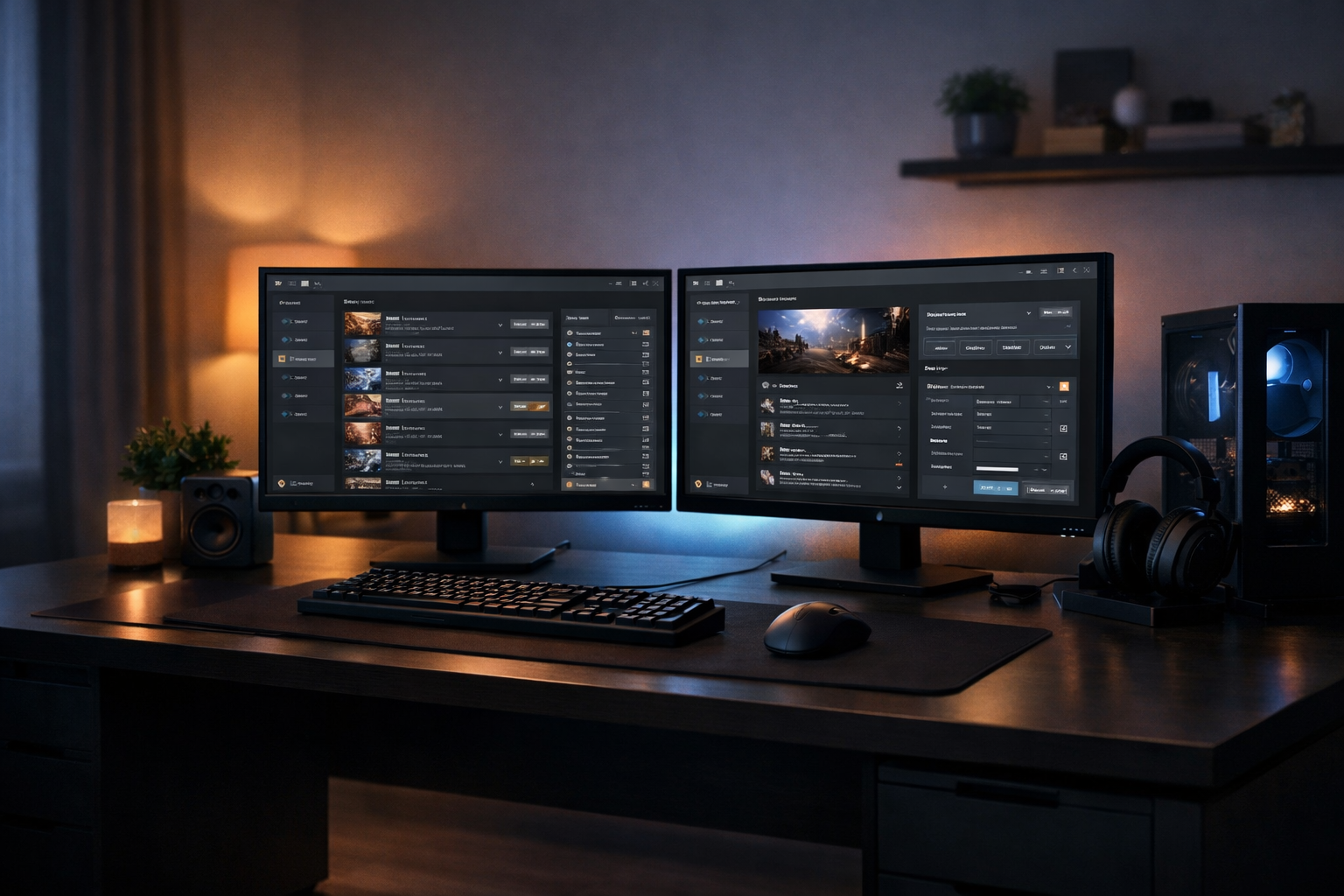
Several community-developed tools simplify load order management. Programs like LOOT (Load Order Optimization Tool) scan your mod list, detect conflicts, and suggest an optimal load order. These tools reduce guesswork and help avoid common errors. Additionally, mod managers such as Vortex or Mod Organizer 2 integrate load order sorting and make enabling, disabling, or uninstalling mods easier.
Tips for Cleaner PC Game Installs
Keeping your game installs clean improves performance and reduces issues. First, uninstall mods properly using your mod manager’s uninstall feature instead of deleting files manually. This prevents leftover files that can cause conflicts. Second, periodically verify the integrity of your game files through your platform (Steam, Epic Games, etc.) to restore any corrupted or missing base files.
Another useful habit is to create separate profiles for different mod setups. This way, you can switch between mod collections without mixing files, keeping each installation cleaner. For example, you might have one profile for a heavily modded RPG experience and another for a vanilla or lightly modded playthrough.
Organizing Mods by Type and Priority
Grouping mods by their function helps decide load order. For instance, core gameplay changes should load before cosmetic mods like textures or UI tweaks. Script-heavy mods often need to load earlier to provide a stable foundation. When two mods affect the same feature, check community forums or mod descriptions to identify priority. For example, a quest mod altering NPC behavior should usually load before a mod changing NPC appearances.
Avoiding Common Modding Pitfalls
One frequent mistake is installing too many mods at once without testing. Adding mods incrementally allows you to identify which mod causes issues if problems arise. Also, always read mod descriptions, compatibility notes, and user comments before installing. Some mods explicitly state load order requirements or incompatibilities that can save troubleshooting time.
Conflicts can also arise from outdated mods. Regularly check for updates or patches, especially after game updates, to maintain compatibility. Avoid mods that have not been updated for a long time unless you are prepared to troubleshoot.
Backing Up Your Game and Saves
Before applying mods or changing load order, back up your game files and saved games. This practice prevents data loss if something goes wrong. Many mod managers offer backup options, or you can manually copy your save folder and game directory to a safe location. Having backups allows you to revert to a stable state quickly.
Practical Example: Modding a Classic RPG
Imagine you are modding a classic RPG with an overhaul mod, a texture pack, and a quest expansion. The overhaul mod should load first as it changes core gameplay mechanics. Next, the quest expansion loads to add new content without overwriting the core changes. Finally, the texture pack loads last to update visuals without affecting gameplay scripts.
Using LOOT or a similar tool can confirm this order and highlight any conflicts. Testing the game after installing each mod helps catch problems early. If a quest fails or textures don’t appear correctly, adjusting the load order or consulting mod forums often provides solutions.
Maintaining Your Mod Setup Over Time
Modding is an ongoing process. As you add or remove mods, revisit your load order and clean your install regularly. Remove unused mods, clear temporary files, and verify game integrity after major changes. Keeping detailed notes about your mod setup can also aid troubleshooting and help replicate your setup on another PC.
By following these guidelines, you can enjoy a stable, visually enhanced, and personalized gaming experience without the frustration of crashes or conflicts. Mod load order and clean installs are fundamental skills for any PC gamer looking to get the most out of their favorite titles.
Final Thoughts
Mastering mod load order and maintaining clean installs takes patience and attention to detail but pays off with improved game stability and enjoyment. Use available tools, keep backups, and proceed methodically when adding mods. This approach minimizes frustration and maximizes the benefits of PC game modding, allowing you to explore new content and enhancements confidently.